Thursday, December 2, 2010

Favorite Keyboard Shortcuts

Keyboard shortcuts are something that many people are familiar with. Some (like me =) use them on a daily basis, and others just here and there. There are multiple shortcuts that are well known and loved, and then those that I think tend to get forgotten. All of this to say, here are my top 10 (plus a few) favorite keyboard shortcuts…

FYI, for Mac users substitute the Command key for Ctrl
  1. Ctrl + X = Cut, think of the X as a pair of scissors to help you remember this one. 
    Ctrl + C = Copy
    Ctrl + V = Paste, I remember this one as V for Velcro
    (I know that was actually 3 keyboard shortcuts but they’re all very related so they count as one here)
  2. Ctrl + Z = Undo, this is one I could never go without!
    Ctrl + Y will re-do whatever you have undone.
  3. Alt + Tab = Switch between open programs, continue to hold Alt and press Tab again to switch to a different program all with your keyboard. This is great for a quick change during a presentation!
  4. Windows + D = Shows your desktop (btw, the windows key is found right next to the Alt key on your keyboard Smile)  It will minimize all programs and windows that you have open so that you can access your desktop items. Press Windows + D again to show all of your windows.
    Mac users = F11 for same function
  5. Ctrl + D = Duplicate, now I know what you’re thinking, isn’t duplicate just another word for copy, the answer here is no. The Duplicate function actually serves a fantastic purpose. To use it in it’s full glory I recommend opening a PowerPoint slide.
    - Insert a small picture or a small shape
    - Click to select the item then press Ctrl + D on your keyboard (do not touch your mouse here… yeah I’m serious :)
    - Use the arrow keys on your keyboard to move the image over so that it sits right next to your original picture.
    - Press Ctrl + D on your keyboard, and watch as the next image is placed with the exact same spacing next to this image…magical!! If you continue pressing Ctrl and press D  more times, the pattern will continue.
    (You can use this same tip for multiple items, for example, if you get grouping of images that you want to duplicate, just hold the Ctrl key and click to select all of the images, then use Ctrl + D)
  6. F6 (when in Internet Explorer or Firefox) = The address bar being highlighted. This makes for fast typing of a different web address.
  7. Ctrl + Enter (when entering a web address in Internet Explorer or Firefox) = www + .com, Let me explain this one a little bit further. When you are in an internet browser entering a web address to go to, instead of typing out the www.(websitename).com, just enter the website name, then press Ctrl + Enter. For example type in emsisd, then press Ctrl + Enter and your web browser will go to the full address.
  8. Ctrl + F = Find, use this keyboard shortcut anytime you want to find a specific word or phrase in a document or website!
  9. Windows Key + F = Search, use this to search for a document or file on your computer.
  10. Ctrl + A = Selects everything, in a document this means the text and images in the document, in a folder you are viewing this will select all of the items in that folder.

Wednesday, December 1, 2010

Wolfram Alpha...More than a Search Engine

This week the Webby Wednesday site is Wolfram Alpha www.wolframalpha.com. Wolfram Alpha describes itself as a "computational knowledge engine"...what does that mean? Well for starters, when you enter something into the search window on the site, the results that you receive will not be a list of websites. When you search for something, Wolfram Alpha gives you results about whatever you searched. For example, when searching for "Saginaw, TX" I received the following results...

This was just the beginning. Additionally, I received a local map, the local time, current weather, median home price, crime rates, and geographic properties. 

By entering a math problem in the search window, and I pretty much mean any math problem, Wolfram Alpha will yield the results of the equation in detail.

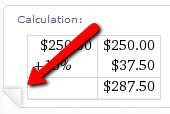
In the information boxes that you receive from a search, you have the ability to save the information as a picture or in plain text. To do this, hover over the page curl that appears when your cursor is in a box. Once you do this you will see the links to "Save as Playlist" or "Copyable Plain Text".

To get a better idea of what Wolfram Alpha is capable of, I highly recommend that you click to view "Examples by Topic". You will find this link from the homepage (under the search window). To see even more, once you have completed a search, to the right of the page reference the "New to Wolfram Alpha?" section.

If you find more super uses, particularly for classroom use please reply to the post and share =) 

Enjoy!


Wednesday, November 17, 2010

Simple Booklet...Fast & Easy Web Flipbooks

Simple Booklet provides one of the easiest platforms that I have seen for fast web publishing. Why would you want to use it? Well, who wouldn't want to make a fun, and interactive "flipbook" to communicate information?

To get started, just click on Create (creating an account is optional, but it does allow for you to save your booklets for later editing). You will see a screen with a simple toolbar, and a large area that says Click Anywhere to Add Content. It's that easy! When you click you will see a window of options. If you want to change the background just click Background, add text? click Text, and if you need to add a video just click Video. I think you get the idea =) You can even resize your flipbook by dragging from the bottom-right corner. Once you've added content you can click and drag your content around on a slide easily. When you need another page, just click the small page-turn corner that's found to the upper-right of your book (if you need to go back click the one on the left).

When you're finished with your flipbook click the Publish  button to see your options. You can publish it publicly, get a short url (ex. http://midd.me/jUrw), and also get the embeddable code to add your flipbook to your website (see below)!

Monday, November 15, 2010

Scholastic Study Jams...for Math & Science

Scholastic has a site with some pretty cool, and brief, math and science videos. Click on "Math" or "Science" from the menu to view all of the topics for that subject. Click the topic that you want to view to see more options. It's easy to get started just go to http://studyjams.scholastic.com/. I learned about this site from Kelly Tenkley and her iLearn Technology blog.

Wednesday, November 10, 2010

Quick Notes or To-Do's....Knowcase.com

Ever find yourself in need of jotting down some quick ideas or even needing to create a to-do list (I know...ha ha)?? I know it would be even better if we could find a way to complete our to-do lists immediately...but until we figure that out, at least there's an easy way to keep your list organized. Knowcase.com provides a straightforward, easy-to-use format for creating quick lists. Even better is that you can share these lists with others so that they too can get to to-do-ing =)

To get started, just go to www.knowcase.com and click Start a new page. Yep, it's that easy...and creating an account is even easier. You can just enter your email address and a password (found to the right of your document), that's it. Creating an account will save your list with your account so that when you login to the site in the future you will have your document.


To enter text and items on the site, just use the toolbar buttons found at the top. You can also primarily use your keyboard to make your list or jot down your ideas. Pressing enter will start a new line and tab on your keyboard will indent. If you want to make an item a to-do item (with a handy little checkbox), just click Todo from the toolbar. If you need to move the order of your items around, just click and drag from the left of the items.

You'll find the options for sharing your document at the bottom of the page. If you haven't created an account you have the option of sharing with specific people. Just click on Share and enter your name and the recipients email address. When you're logged in, you will also have the option of making your document viewable and editable by only You or by Everyone. Just click the words next to the images of the eye and pencil to change these options.

Classroom Application
I can see Knowcase being used by teachers for organization or in a class setting used during a brainstorming activity. I also think Knowcase could provide a great platform for students organizing their ideas. When they're done they could just share their list with their teacher via email!

Enjoy!

Wednesday, November 3, 2010

Weblist...One page of web shortcuts!

weblist.me

Weblist.me is a site designed to put links for multiple websites in one place. Weblist.me puts the web addresses that you enter in an easy-to-use format that would be great for student use.

To get started just go to Weblist and fill in the websites that you want to use. Creating an account for this site is entirely optional. You can just start entering the web addresses that you want to use. Just click the plus sign to add more links.


I did find that the "Add Media" option wasn't always successful for me so I stuck to just using the websites. You'll want to add a name for your weblist, and know that the name you enter here will be used for the site address. Once you click to Create List a window will display with several important addresses. The first address is the one that you want to share with students and others for them to access your weblist. The second address is one that you want to be sure to save so that you have the option of editting your weblist in the future. Once you close the window you will see your completed list. I really like that the sites are tiled so that you get a preview of what's on the webpages.


How does this get even better?? =) Well when you click a link from your weblist page the site will display with a small toolbar at the top. From this toolbar you can click the arrows to move through the different pages from the weblist or just hover over the name of the page to view the other pages in a list.


Classroom Application
Teachers can create weblists for their students to use for research or to introduce a skill or concept. Students can create their own weblists for projects by linking to different webpages and videos. 

Check out the weblist I made http://weblist.me/Onlineclassroomtools-0 for an example and some great classroom tools!

Tuesday, November 2, 2010

RSS Feeds...What are they and are they useful to me??

RSS feeds have been a part of my life for a while now, so I forget sometimes that others are not aware of the benefit of using them and the time that they can save you. If you're in the habit of checking your favorite sites regularly for new and updated information, then RSS feeds are certainly for you! To take advantage of RSS feeds you need an RSS Aggregator or Reader. I use Google Reader for my RSS feeds because it's online and free. Want to try it out? I think the video below does a good job of explaining the function of Google Reader and how to use it.


More sites than you may realize contain RSS Feeds that you can subscribe to including most all news sites, blogs, and podcast pages. If you see an image on a webpage similar to the one below, then it has an RSS feed  that you can subscribe to.

Usually you can just click the image and select to subscribe to the feed, or copy the address of the page and paste it into your Reader. Take a look at the RSS feed button at the top of this blog to see what I'm talking about...and feel free to subscribe =)