

Wednesday, October 26, 2011
Periodic Table of Videos

Wednesday, October 19, 2011
National Day on Writing October 20
Wednesday, October 20 is the National Day on Writing. To support this day I thought I would post about to some great writing resources that I have come across. The first is site that is a contest for the National Day on Writing.
 Figment.com Contest - Why I Write: Submissions accepting submissions from September 28 - October 29. The question is simply "Why Do You Write?". View more info from Figment: Why I Write.
 QuietWrite - quietwrite.com is a an online platform for writing. It provides a clutter and distraction free screen as a place to write. Get started at quietwrite.com
 Oneword - Oneword.com offers a free service site that prompts you with one word, and then gives you 60 seconds to write about that word. Ideal for high level 4th & 5th elementary and older students.
 Scholastic Story Starter - A quick everyday-kind of writing activity. You just enter your name, pick your grade level, and spin the wheel to generate a story starter. I learned of this site from Cindy's blog (thanks Cindy!), Tucker Tech Talk.


Wednesday, October 12, 2011
Make Any Pic Talk with Blabberize
Blabberize provides a great, free, easy to use application for making photos or images talk. You do not have to have an account to use it, but if you want to be able to access all of your prior Blabberize creations from the site in the future it might be a good idea to make one.
View student project examples of Blabberize here and here.
Necessary Materials...
View student project examples of Blabberize here and here.
Necessary Materials...
- Digital Picture or Image (This is what you will make speak)
- Blabberize.com
- Go to Blabberize
**Note - The video that you will see on the homepage of the site is funny, but I would recommend that you do not have the students view it. - Click Make.
- Click Browse to select the picture that you would like to use.
- Click and drag the points around the mouth.
**Tip - Make the side green points extend as far the edges as you want the mouth to be. The green point at the bottom will dictate the direction that the mouth moves. - Click the Arrow to go the next screen.
- Select your sound source. At this point you can either record straight from your computer, upload a voice recording, or call in a voice recording.
**Tip - If you don't like where the mouth placement is and want to make a change, click the small mouth icon, and then click the area to change. - Once you've added your sound, click OK to complete.
- Save your Blabberize creation!
Wednesday, October 5, 2011
Online Timers that are Great for Teachers!
So I'm revisiting a topic I have posted about before, but timers are such a great resource for classroom management, and the internet is so accessible, I think it's super wonderful to mingle the two together.
The following are my favorites, plus a few. I have them pretty much in order starting with my favorite, but view them all to see for yourself which one you prefer :) You can view my original post about timers too if you are so inclined.
 e.ggtimer.com - There's a couple of things I really like about this timer. First, you can actually type in the time you want to use for the timer in the url, for example, e.ggtimer.com/5minutes, would automatically pull up a website with a countdown from 5 minutes. You type in any time amount here, as well as a few other cool things that you learn about on the site's main page.
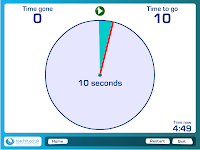 Teachit Timer - A very large, easy-to-follow output is displayed while the timer is counting down. You use sliders to input the time you would like to set. It also lets you select different final sounds. I really like the visual while the timer is counting down.
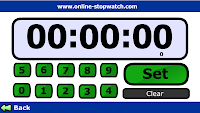 Online Stopwatch - This site can serve as a stopwatch or a timer. To use the stopwatch click the green arrow stopwatch link. You'll then be taken to a page that will allow you to start the stopwatch. If you need go back to the main page just click the provided "back" link. To use the timer function of the site, click the "Count Down" red arrow. Use the buttons on the screen to set your time, then click the "Set" button. From here you can start the timer.
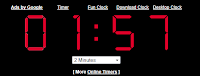 timer.onlineclock.net/ - This is a simplistic timer that can be shown quite large on your screen. Just use the links in the upper-left to adjust the size. Use the drop-down menu under the timer to set a time. The timer will begin as soon as a time is selected.

Class Timer - This is a little bit smaller version but it does a great efficient job. It counts up or down depending on the option that you select.
The following are my favorites, plus a few. I have them pretty much in order starting with my favorite, but view them all to see for yourself which one you prefer :) You can view my original post about timers too if you are so inclined.
 e.ggtimer.com - There's a couple of things I really like about this timer. First, you can actually type in the time you want to use for the timer in the url, for example, e.ggtimer.com/5minutes, would automatically pull up a website with a countdown from 5 minutes. You type in any time amount here, as well as a few other cool things that you learn about on the site's main page.
 Teachit Timer - A very large, easy-to-follow output is displayed while the timer is counting down. You use sliders to input the time you would like to set. It also lets you select different final sounds. I really like the visual while the timer is counting down.
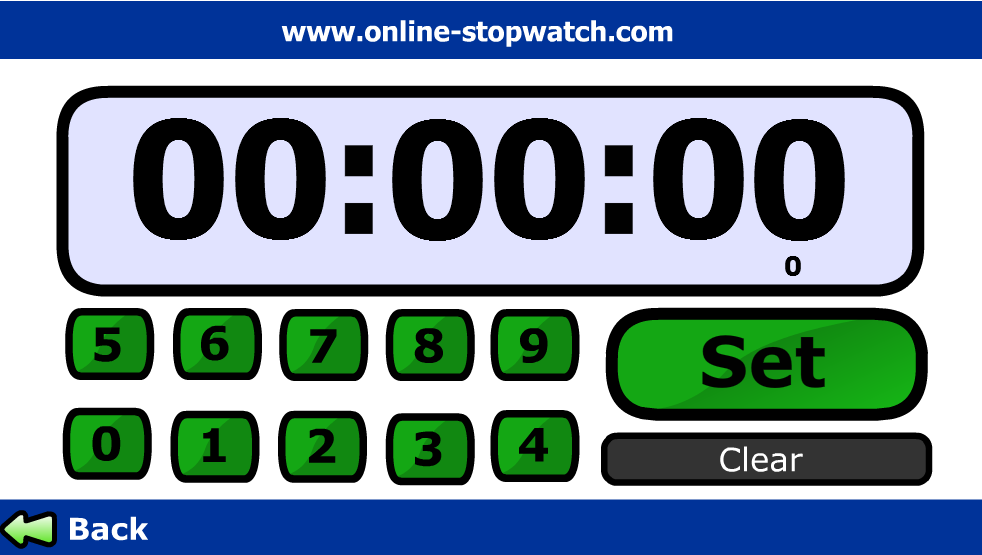 Online Stopwatch - This site can serve as a stopwatch or a timer. To use the stopwatch click the green arrow stopwatch link. You'll then be taken to a page that will allow you to start the stopwatch. If you need go back to the main page just click the provided "back" link. To use the timer function of the site, click the "Count Down" red arrow. Use the buttons on the screen to set your time, then click the "Set" button. From here you can start the timer.
 timer.onlineclock.net/ - This is a simplistic timer that can be shown quite large on your screen. Just use the links in the upper-left to adjust the size. Use the drop-down menu under the timer to set a time. The timer will begin as soon as a time is selected.

Class Timer - This is a little bit smaller version but it does a great efficient job. It counts up or down depending on the option that you select.
Wednesday, September 28, 2011
Want to Book Parent Conference More Easily??
 VolunteerSpot is a great site that offers a free resource that would be great for scheduling conferences. Parents can sign up for pre-determined times by clicking a link (from a site or by email). See the steps below to get started.
- Go to www.volunteerspot.com
- Click the Register button and enter your information (I always do uncheck the "receive emails" box just because my mailbox already gets too full :) You will have to verify your email address by clicking a link in an email that VolunteerSpot sends you (mine came very quick) and then Login to the system.
- Click the Create New Activity button
- Enter the details for your Activity. In using this site for parent conferences you will want to name your activity something like "Parent Conferences" and include your school name (this info will be at the top of the calendar when the parents are signing up). For the welcome message I would say something like "Please sign up for a time that you are available for a conference. All conferences are scheduled for 15 minutes. I look forward to seeing you soon!"
- The next step is for you to add the times that you would like parents to register for. To do this...
- Click a day on your calendar
- Select Plan This Day
- Click Add a TO DO Task
- Enter your details
- Name: Parent Conferences (the first time you type this copy it, then you will be able to just paste the text in for the rest of your times)
- Limit the number of people that can sign up to 1 (this is super important so that you're not double-booked)
- Add a Start Time (and End Time if you'd like)
- Save
- Repeat steps 4 & 5 above for the rest of your appointments
- Once all of your times are scheduled in the calendar you will be prompted to send a draft email. It will default to just send to you so that you will be able to see what parents would (you can come back later and email the invitation to parents if you so desire OR see the next step).
- Click the gold button on the left that says Create a Link. Click to Generate the link and then copy either the link (which you can put on your website or in an email), or copy the code to embed a button on your site that parents can use to register (see example here).



If you use this site to schedule your conferences this year let me know how it goes. Also as the "Event Organizer" you have the ability to schedule people for a time so if a parent can't access the page there is an alternative. I know I wish I had this tool available to me when I was in the classroom. I would have loved to not have to keep up with those tiny sheets of papers and individual emails ;) Go to www.volunteerspot.com to get started.
Wednesday, September 21, 2011
Symbaloo - Fast links, Fun interface
Symbaloo offers a great way to sort out site links. You can pick from pre-organized Symbaloo pages (see here) or create you own (see my example, screen shot below).

With a free account you can create your own start page and have a link to post on your site in order to share it with your students. To get started with creating your own Symbaloo for education, follow the steps below, or view the video at the bottom of the post.
With a free account you can create your own start page and have a link to post on your site in order to share it with your students. To get started with creating your own Symbaloo for education, follow the steps below, or view the video at the bottom of the post.
- Go to edu.symbaloo.com
- Option A - use the Symbaloo you see here
Option B - click Create free account (in the upper-right) to make your own and save it - Enter your name, email, and a password (you might want to uncheck "I want the inside scoop" before you select to "agree to Symbaloo's..." and click Create my account
- Click Get started with your webmix (you'll see a pop up after this to Set as my home page, you can follow the directions, or just close that window)
- Click on blank tile space to add a site
- Select Click here to create your own tile
- Enter your site address select your options, then click to Add tile to webmix

- You will see your newly created tile, just click it and drag it anywhere on your webmix


Thursday, September 15, 2011
Quick Google Searches

Google is a service that many of us are quite familiar with, but there's more to Google than meets the eye. For example, did you know that by simply typing "weather" you will get the current weather and the next 4 days forecast for your current location, and it gets even better! Quickly find conversions, time, definitions, when the sun will rise and even more. Check out the quick (I promise it's short ;) video below.
If you like these tips and would like to know even more, check out Google's Features page by clicking here.
Subscribe to:
Posts (Atom)